.png)
How to view previous year's data on Essential Assessment
There are multiple areas within the platform where your students’ historical data can be accessed and reviewed.
This data is available for all years your school has held a subscription with Essential Assessment.
View Class Results
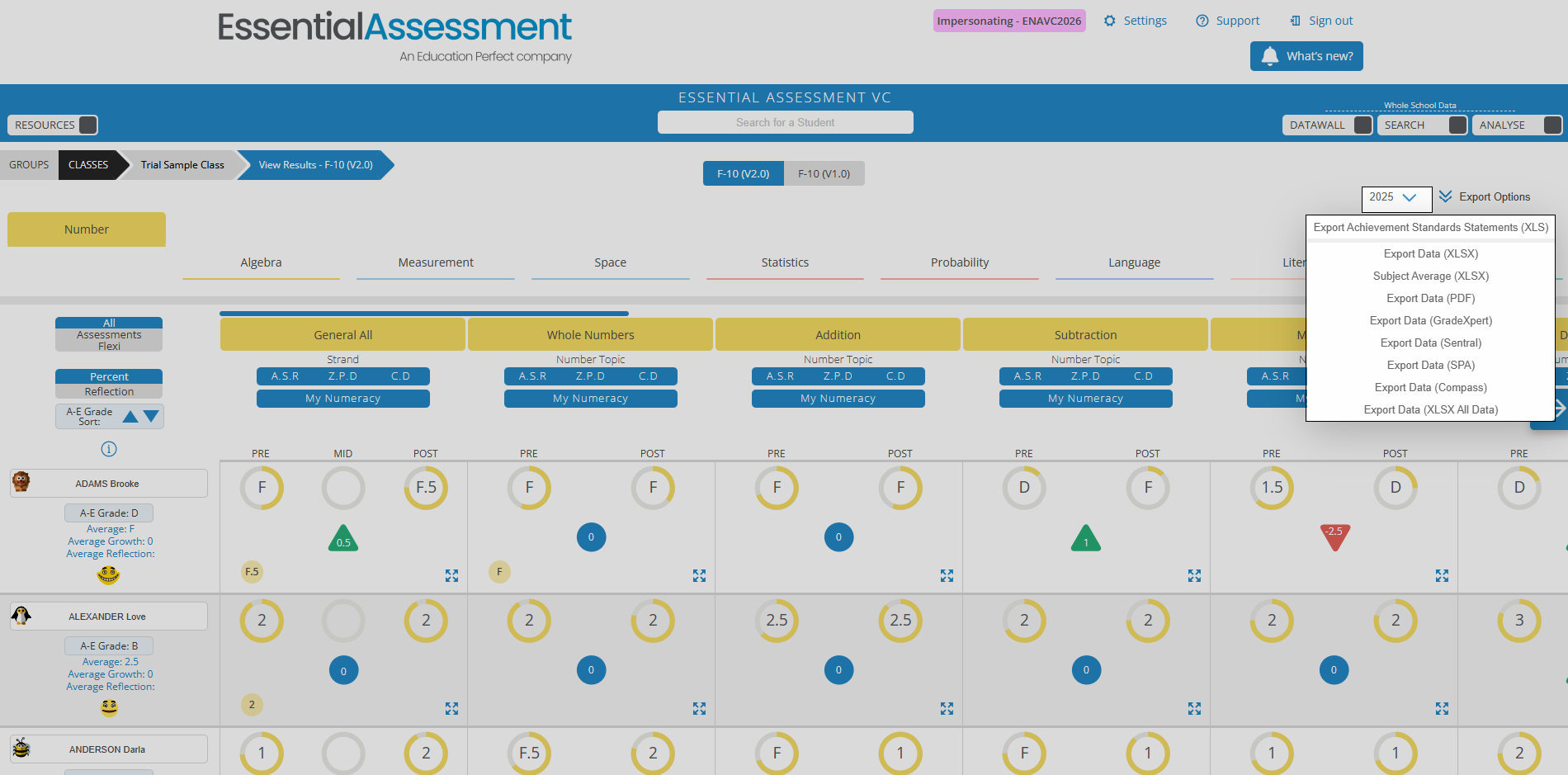
Assessment results can be viewed and exported via the View Class Results option within a class. The data shown can then be exported for you to download and save.

From this screen, you can view your students' data for the selected year. This includes each student’s accumulated results, such as their A–E grade, average curriculum level and average growth on the left-hand side of the screen. Additionally, it includes any point-in-time they were assessed (pre/mid/post) within that strand for all assessment types. (General All/ NSW Common Grade, Topic/Focus Area, Flexi).
Export Options
Export options are located in the top right corner, next to the year selector.
You can download the assessments and results completed by the class in that year by selecting Export Data, choosing either an XLSX or PDF format.
Whole School Data - Search
The Search function allows you to locate specific historical data for selected groups of students. This can support cohort planning, by enabling you to filter and refine the exact data set you need.
Overview of the Search function
To access the Search function, click the SEARCH toggle so that it is highlighted blue.
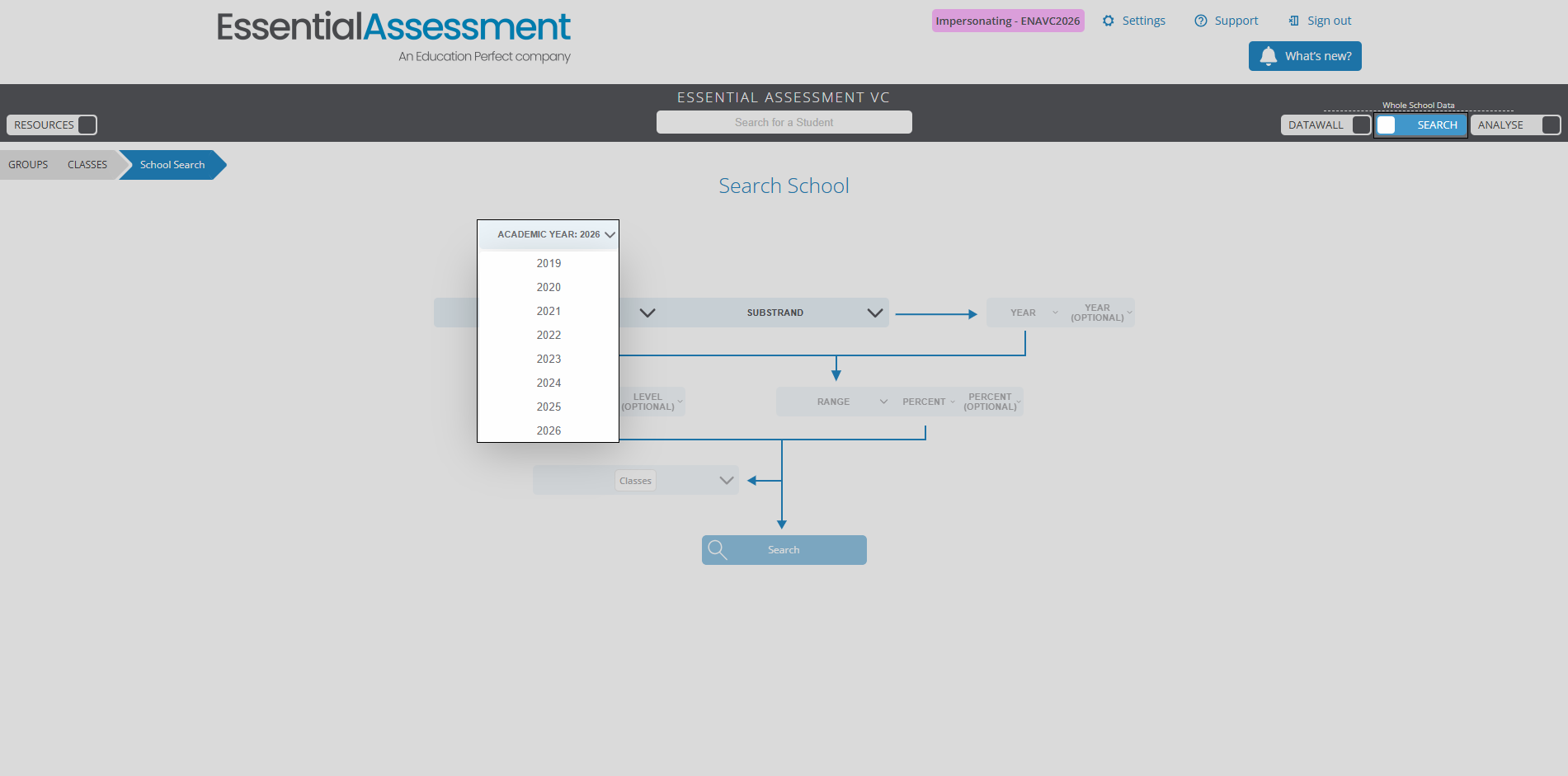
First, you will need to select the year from the drop-down menu. From here, you can select the data you would like to collate from the drop-down menus within the flowchart.
You can select up to two year levels and grading levels.
Click Search when you are happy with the chosen data, and you will be taken to the results.
Searching for a General All Assessment (VC/AC) or a Common Grade assessment (NSW) will offer a broad snapshot of student learning.
The results will load the Achievement Standard Results data set first. You will need to collate and sort this data set. This will order the students on the Guttman chart according to their results.
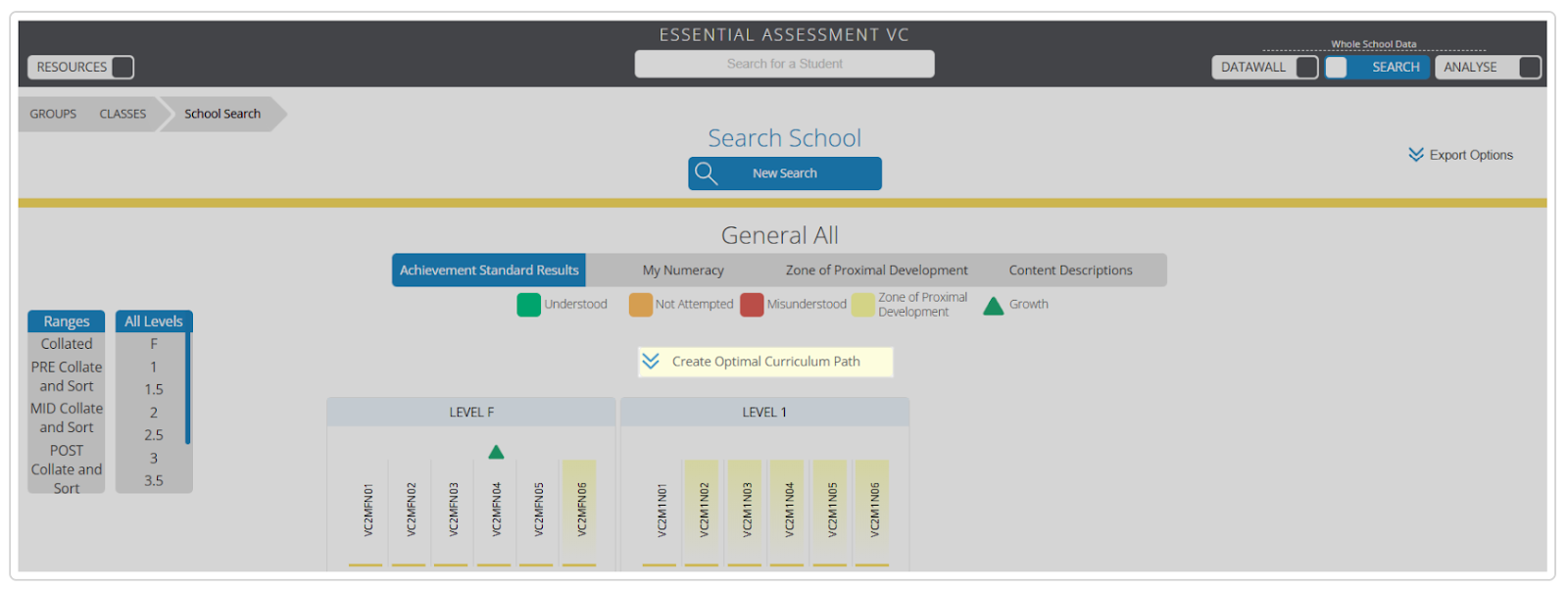
Note: My Numeracy tasks cannot be assigned when you are in the Search function.
You're able to export the data based on which section you are viewing by clicking Export Options.

Strand Overview
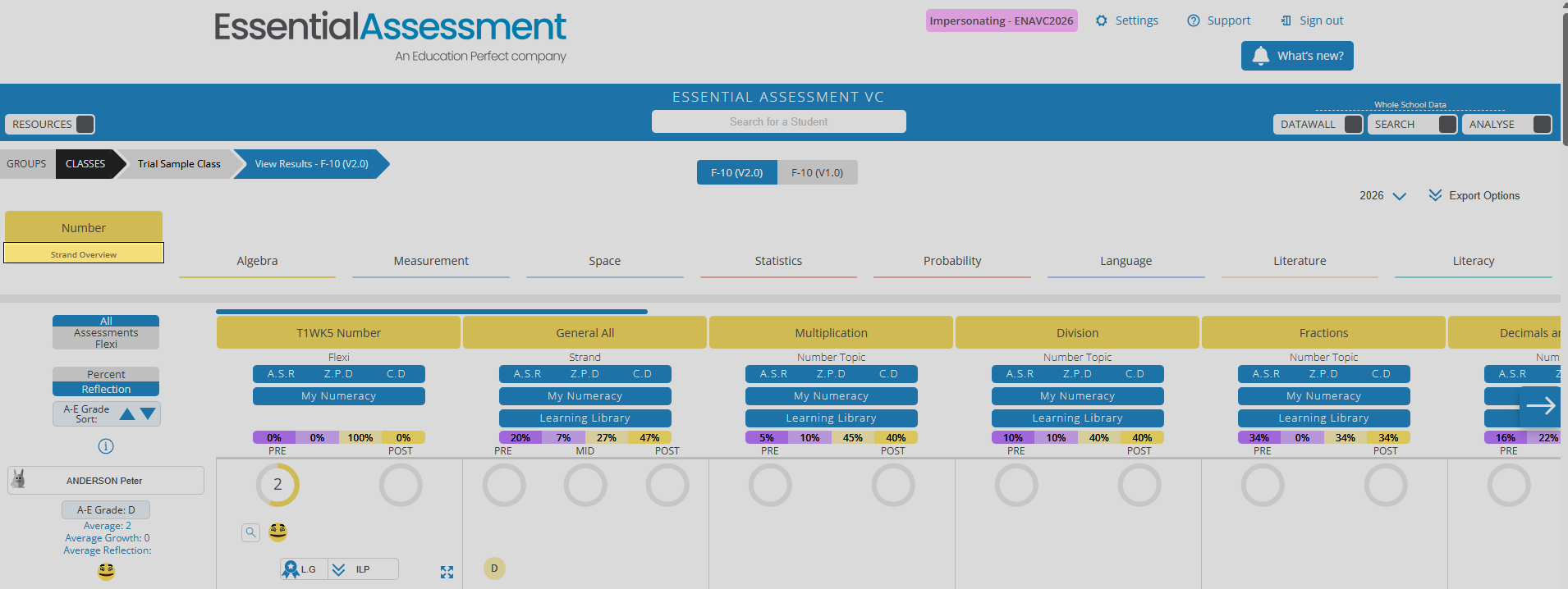
You can search for a previous academic year’s Strand Overview. This provides an evaluation of all data contained across each strand and includes the following:
- Student’s average achievement level.
- Overview of the percentage of understanding shown for each content Descriptor/ Content Group.
- My Literacy and My Numeracy results.
- Summary of student and class growth for each content description.
At the class level, you access this through clicking into View Class Results, then selecting the Strand Overview from underneath the Strand Heading. Then you can select the calendar drop-down on the left -hand side to select the previous year’s data.
Cohort Data
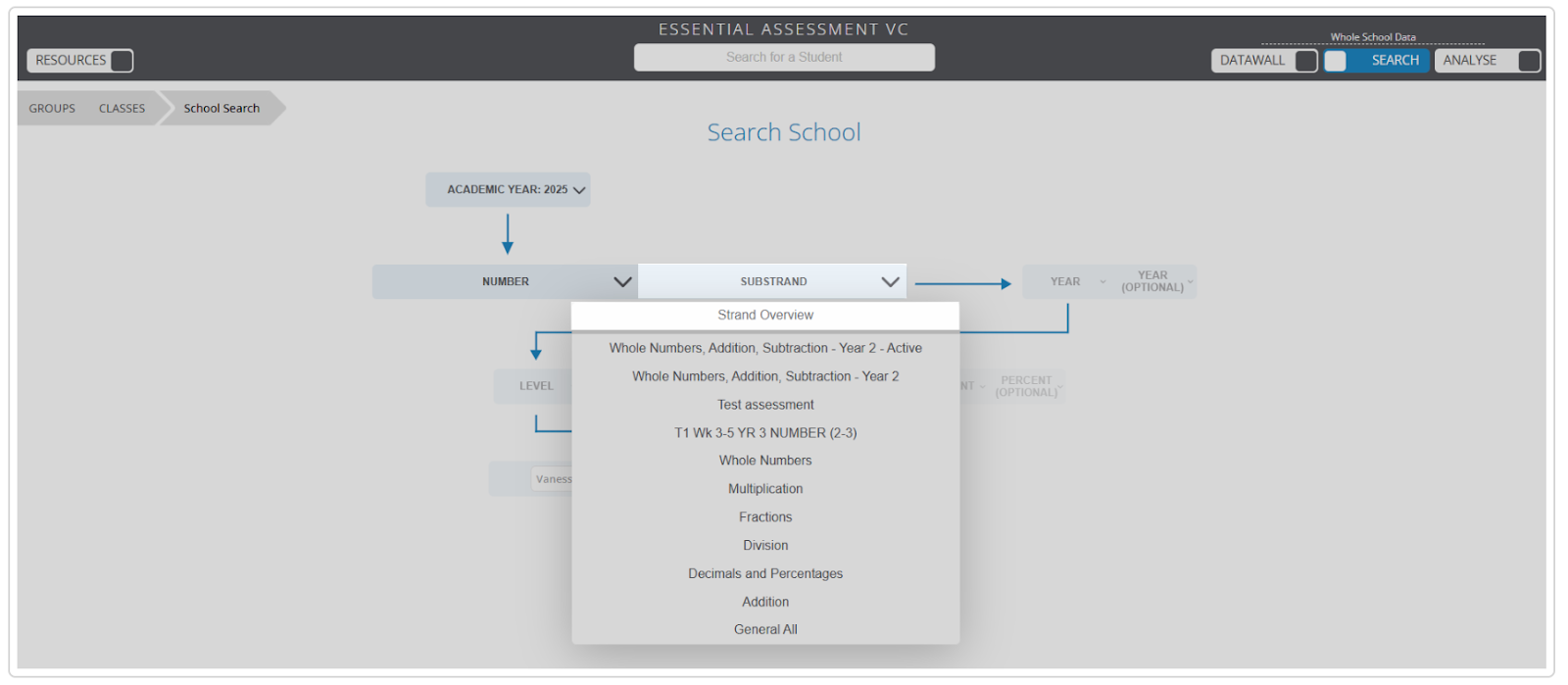
You can also complete a search for the Strand Overview data for a cohort using the Search School Function. Use the Search Function to select the Academic Year, then the Strand. Under the Substrand drop-down, you can then choose Strand Overview.
From here, complete the rest of the filters with the information you would like included in the data. You must select specific classes even if you have chosen a year level, to ensure the data is combined from those classes.
NSW Outcomes
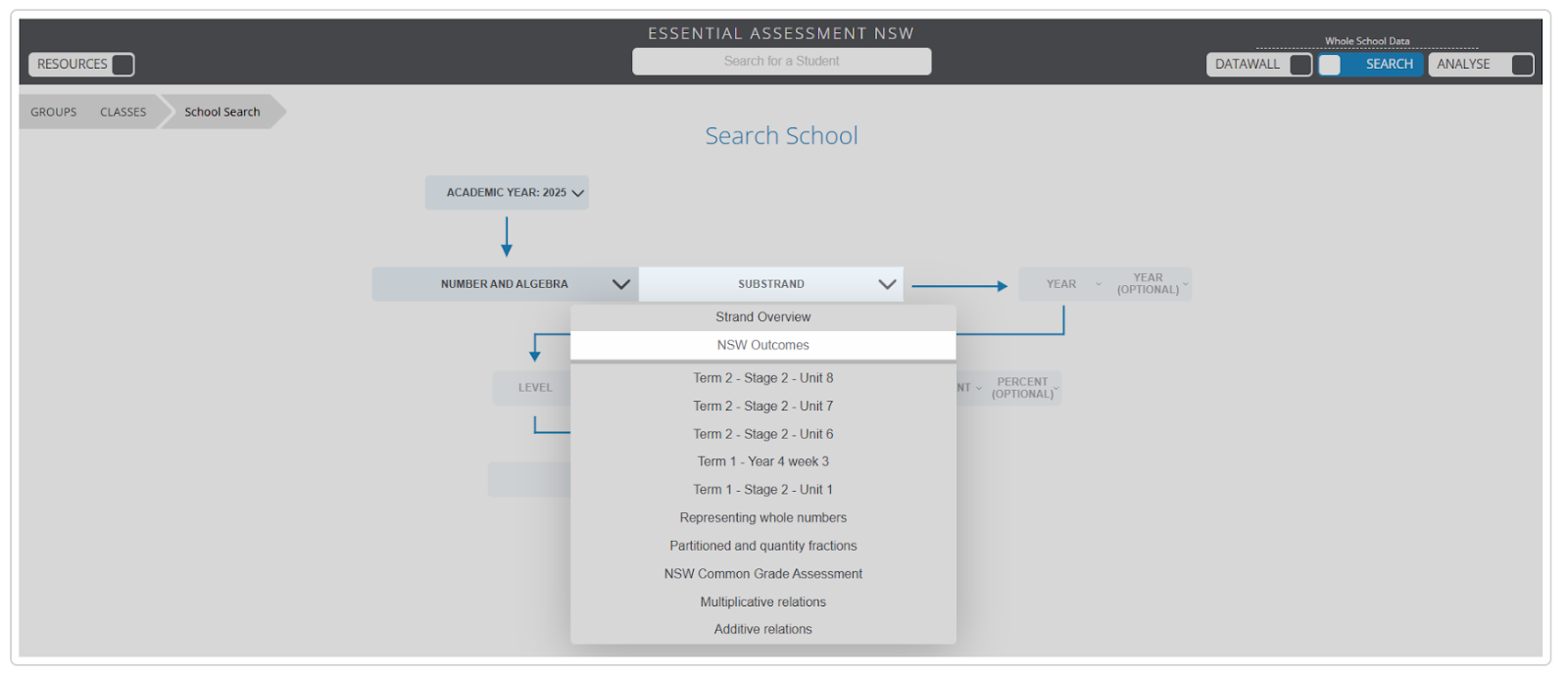
For our NSW subscribers, you will have the option to complete a search for NSW Outcomes data for a cohort. Once you have chosen the Strand, click NSW OUTCOMES under SUBSTRAND.
Historical data can also be viewed through the Data Wall and Analyse function